Admin Walkthrough
For Customer Admins

Screen by screen

The admin dashboard, one screen at a time

Every screen you’ll touch as a Lollipop admin — what it does, where to find it, and what to watch for. Coral rings in the screenshots mark the control to act on.

Your Customer Success contact handles most of the initial setup with you. This guide is for afterwards: changing a send time, adding someone who joined, fixing a bounced email, checking how the month is going.

How this guide is ordered

Setup (steps 1–7) is what gets configured before launch. Running it (steps 8–13) is what you’ll come back to month after month. Skip to whichever you need.

Where things live

To do thisGo here
Upload your rosterEmployees › Imports
Add one personEmployees › Add Employee
Change when check-ins sendTeams › Delivery Schedules
Change who gets alertsSettings › Configuration
Email, SMS or SlackSettings › Check Ins
Fix a bounced addressSuper Admin › Invalid Users
See who opted outSuper Admin › Unsubscribed Users

One rule above all others

Keep the company Inactive until your launch date. Switching to Active immediately emails every admin and supervisor a "set up your password" notice — so do all your setup first, then flip the switch.

Lollipop · Creating Caring Workplaces
Admin Walkthrough
Setup

Setup · before launch

1

Settings → Company Information

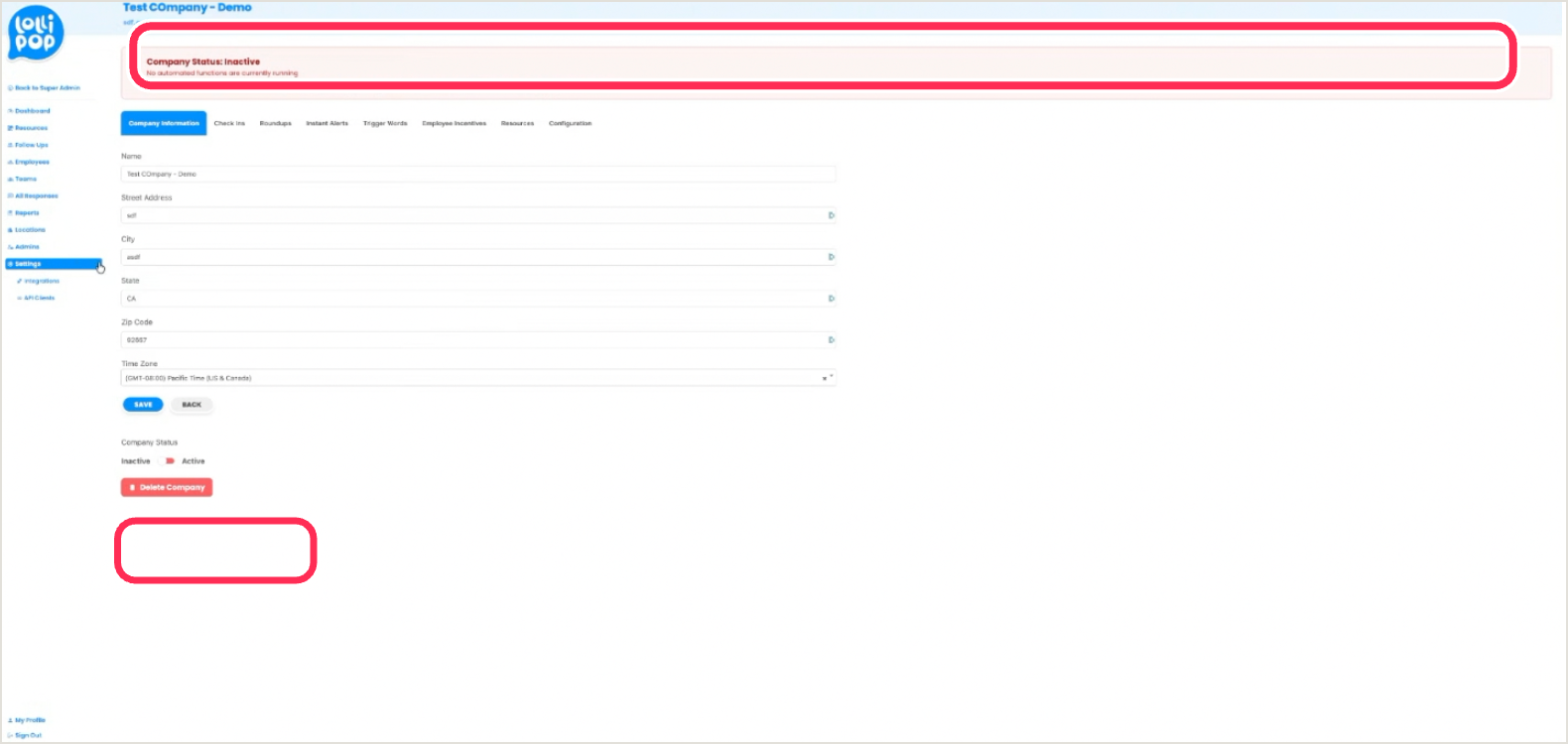
Confirm your name, address, and Time Zone. The time zone defaults to Pacific and is the master clock for every send, so set it before anything else. The red banner and the Inactive / Active toggle at the bottom confirm automations are off while you build.

Company Information settings with the Company Status: Inactive banner and the Inactive/Active toggle ringed
2

Settings → Check Ins

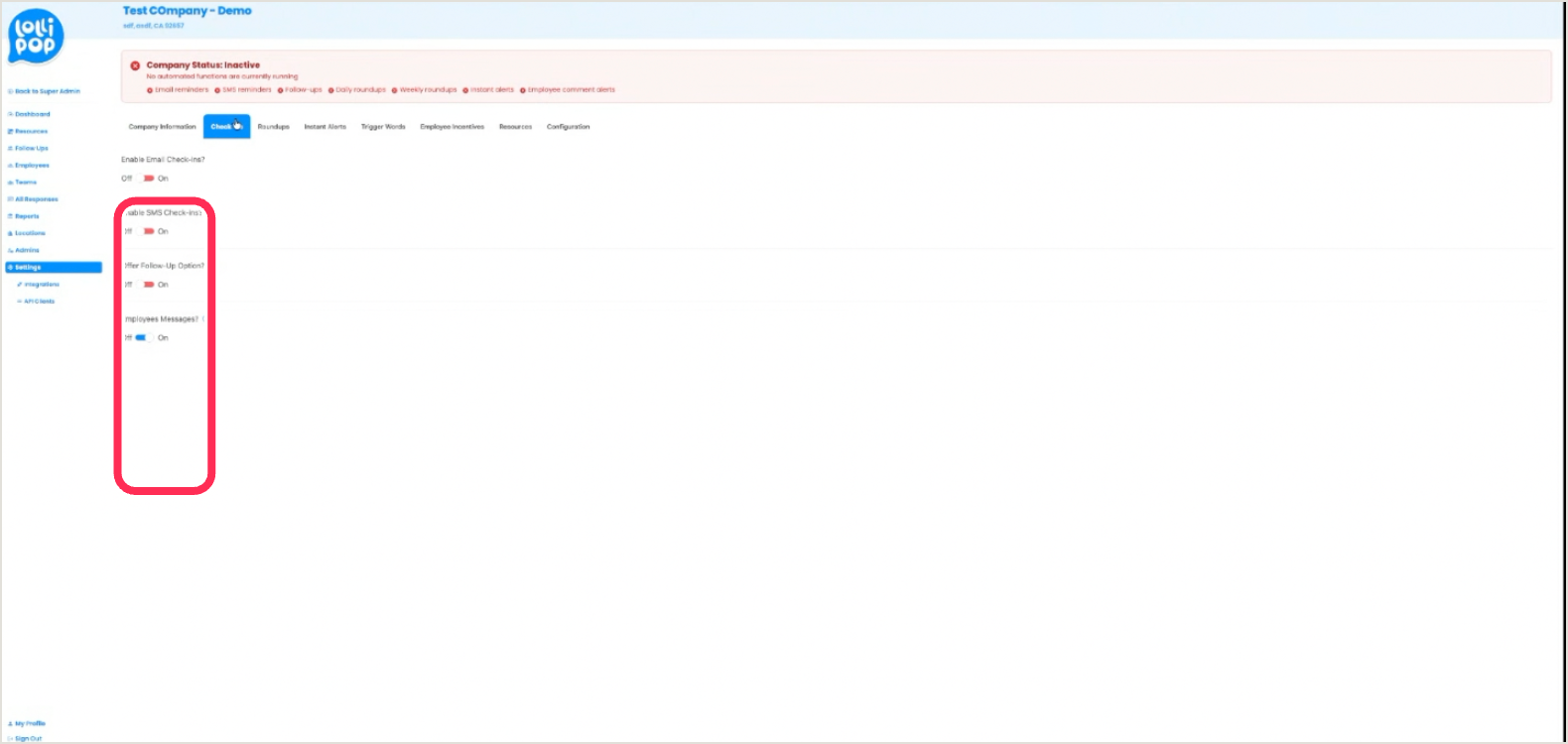
Choose how check-ins reach people — Email, SMS, and Offer Follow-Up. Leave Follow-Up on so someone having a hard day can ask for a manager conversation. These are company-wide settings, not per team.

Check Ins settings tab with the Email, SMS and Follow-Up toggles ringed

Channel toggles only take full effect once the company is Active.

Lollipop · Creating Caring Workplaces
Admin Walkthrough
Setup
3

Employees → Upload

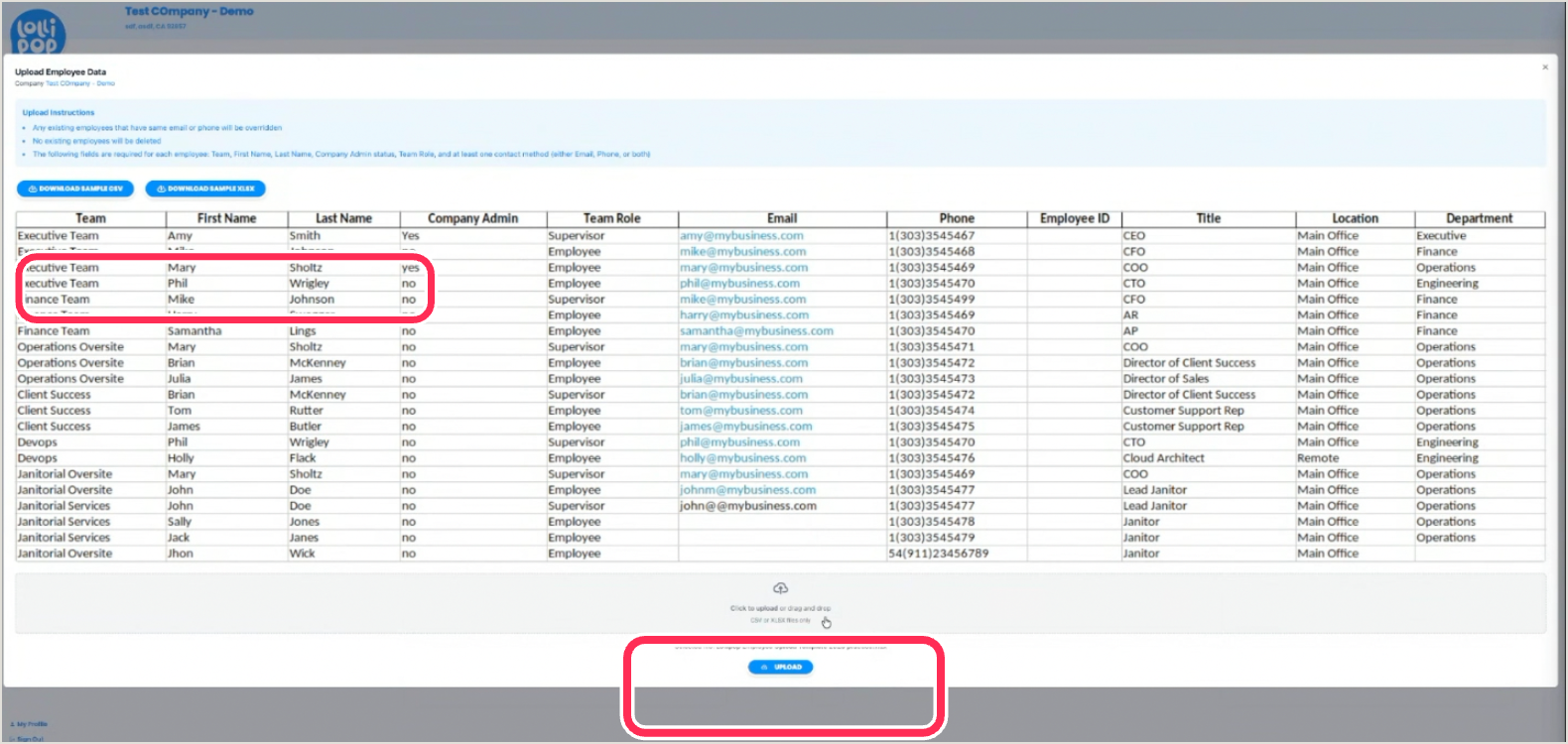
Download the sample template, match it exactly, then attach your file before clicking Upload — the button won’t prompt you for one. A CSV Import Report emails back from noreply@lollipopco.co listing any rows that failed and why.

Upload Employee Data modal with Download Sample and the Upload button ringed

What each column needs

ColumnRequiredWhat to put in it
TeamRequiredDrives grouping and who gets the alerts.
First / Last nameRequiredReal names — the program is not anonymous.
Company AdminRequiredYes or No. Yes grants full admin access.
Team RoleRequiredMust read employee or supervisor — lowercase.
Email and/or PhoneAt least oneEither will do. Phone enables SMS check-ins.
ID · Title · Location · DeptOptionalImproves your reporting and segmentation.
Lollipop · Creating Caring Workplaces
Admin Walkthrough
Setup

Setup · before launch

When rows fail to import

Seven things cause nearly every failed row. The import report names the row and the reason, so work down this list against what it tells you.

What went wrongHow to fix it
Phone formatMust match the template exactly — (555) 123-4567, parentheses and dashes. The most common failure by a distance. Excel reformats numbers on its own, so check after saving.
Team Role says "user"It must read employee or supervisor, lowercase. Rows with "user" fail silently.
Instruction rows left inThe template’s first two rows are instructions, not data. Delete them so the headers read correctly.
Blank rowsAny empty row breaks the import. Check the bottom of the sheet, where Excel leaves phantom rows after you delete people.
Supervisor on several teamsThey need one row per team. That’s how the supervisor structure works.
Duplicate emailsEach person appears once. A supervisor doesn’t need a second row to also be an employee.
Upload clicked too earlyAttach the file first — the button doesn’t prompt you for one.

Two shortcuts worth knowing

If you’re on Slack, delete the phone columns entirely before uploading — delivery goes through the bot, and it removes the biggest source of failures at a stroke. And re-uploading is safe: it adds and updates without deleting anyone, so fix the flagged rows and run it again as many times as you need.

Lollipop · Creating Caring Workplaces
Admin Walkthrough
Setup
4

Teams — verify supervisors

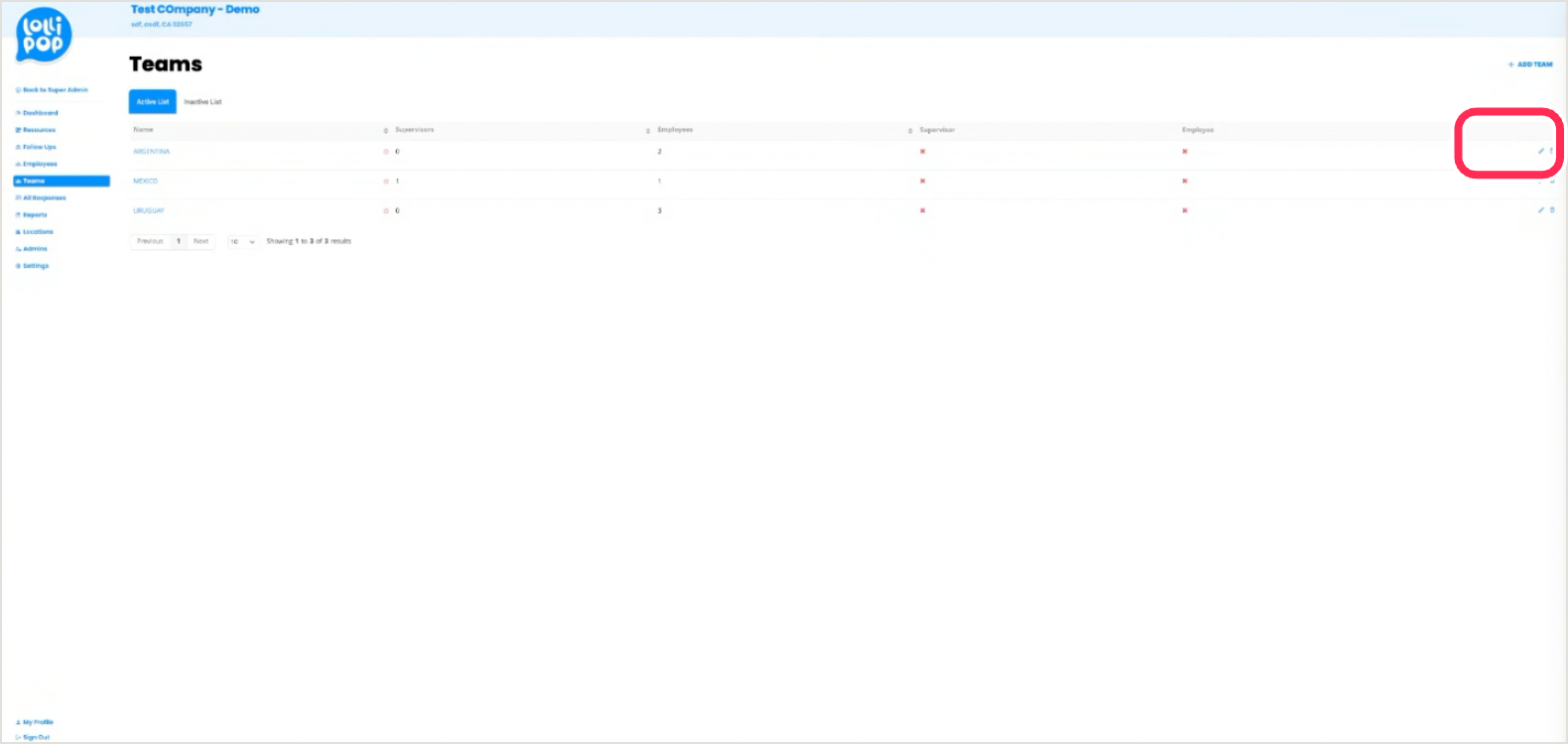
After the upload, confirm every team has its supervisors and that the employee counts match your roster. A red ✗ in the Supervisor or Employee column flags a team with no coverage. Use Add Team for anything the sheet didn’t create.

Teams list with the Add Team button ringed
5

Employees → Add Employee

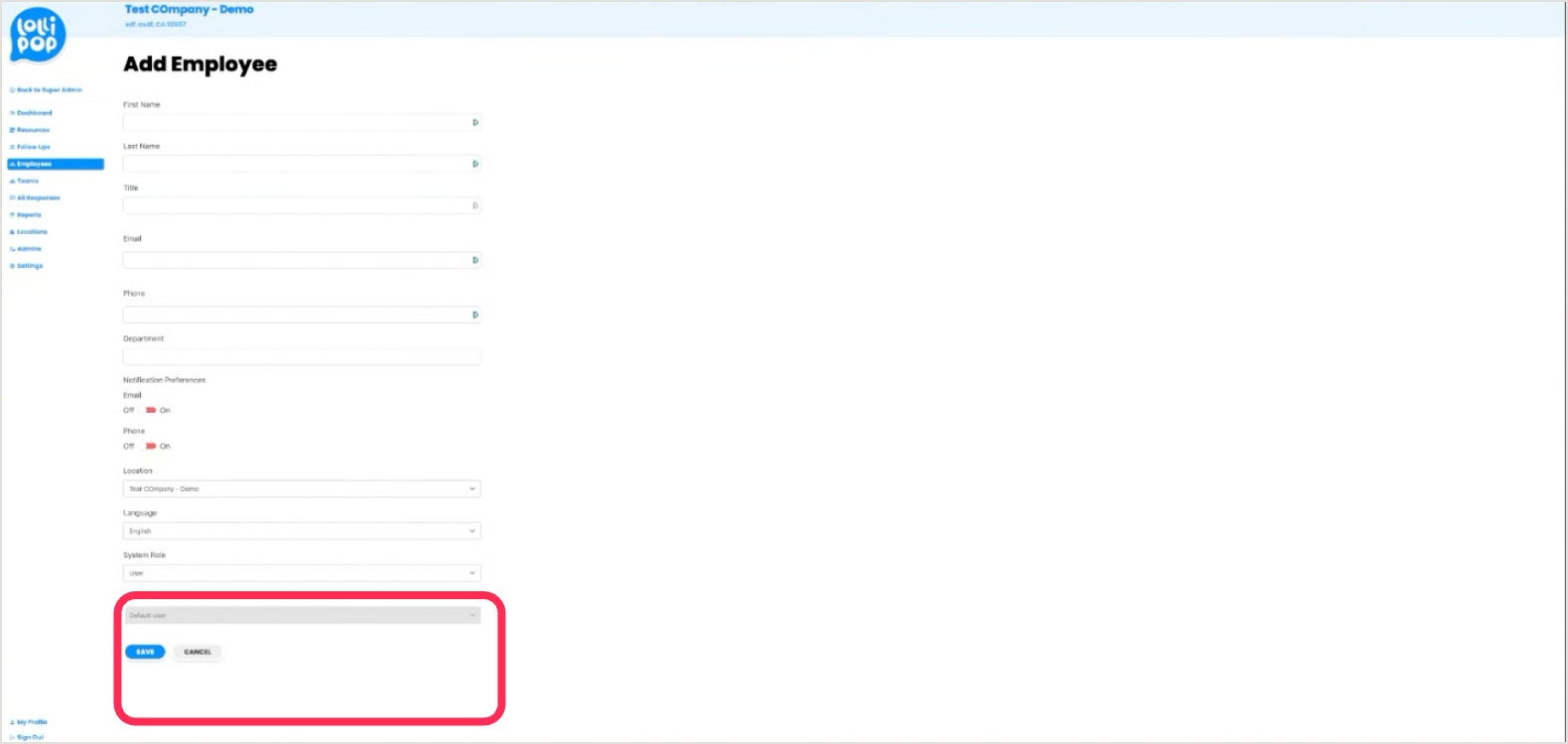
For one or two people joining, add them here rather than re-uploading the whole roster. Set their System Role and Company Role, then Save.

Add Employee form with the System Role / Company Role fields and Save button ringed

"Delete" only deactivates — the person moves to the Inactive list rather than disappearing.

Lollipop · Creating Caring Workplaces
Admin Walkthrough
Setup
6

Teams → Delivery Schedules

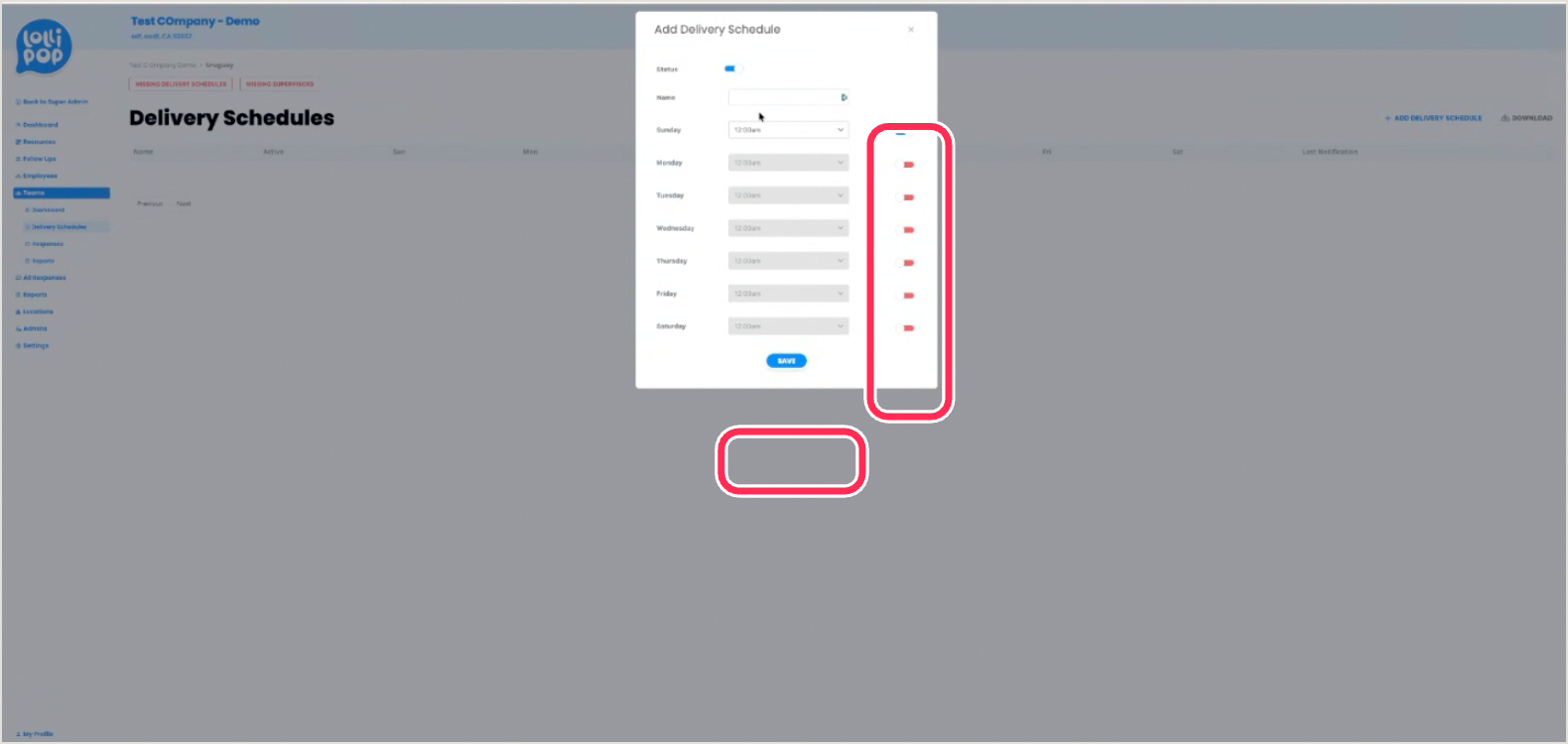
Set send days and times per team — there’s no bulk option, so repeat for each one. Toggle the days on, pick the time, Save. Three to four times a week is the recommended cadence.

Add Delivery Schedule modal with the per-day toggles and Save button ringed

The time zone is company-wide. For teams in other regions, offset the clock time so each lands in its own local window.

7

Settings → Configuration

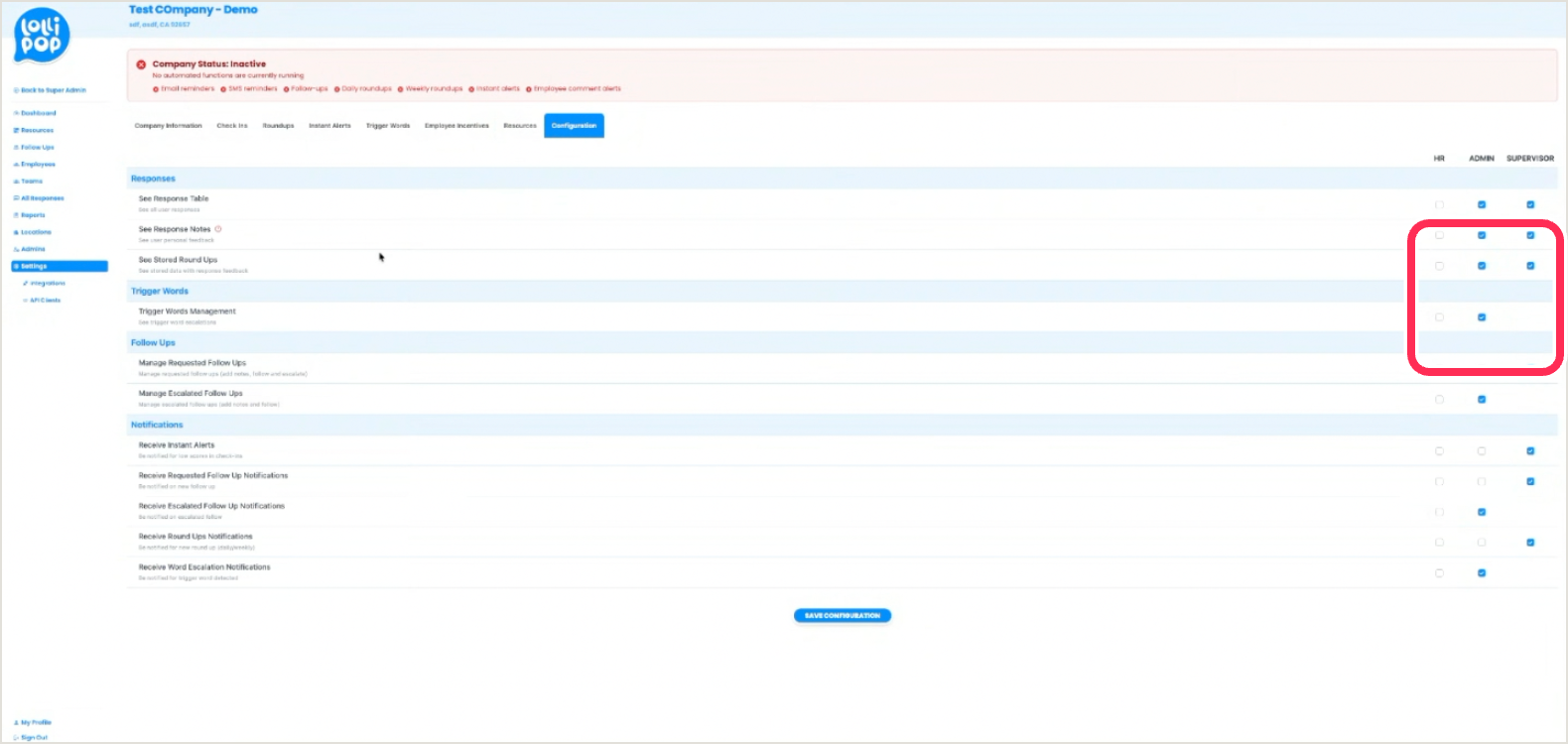
Decide what HR, Admin, and Supervisor each see and receive — responses, trigger words, follow-ups, and notifications. Then Save Configuration.

Configuration permissions matrix with the HR / Admin / Supervisor columns ringed
Lollipop · Creating Caring Workplaces
Admin Walkthrough
Running it

Running it · month to month

8

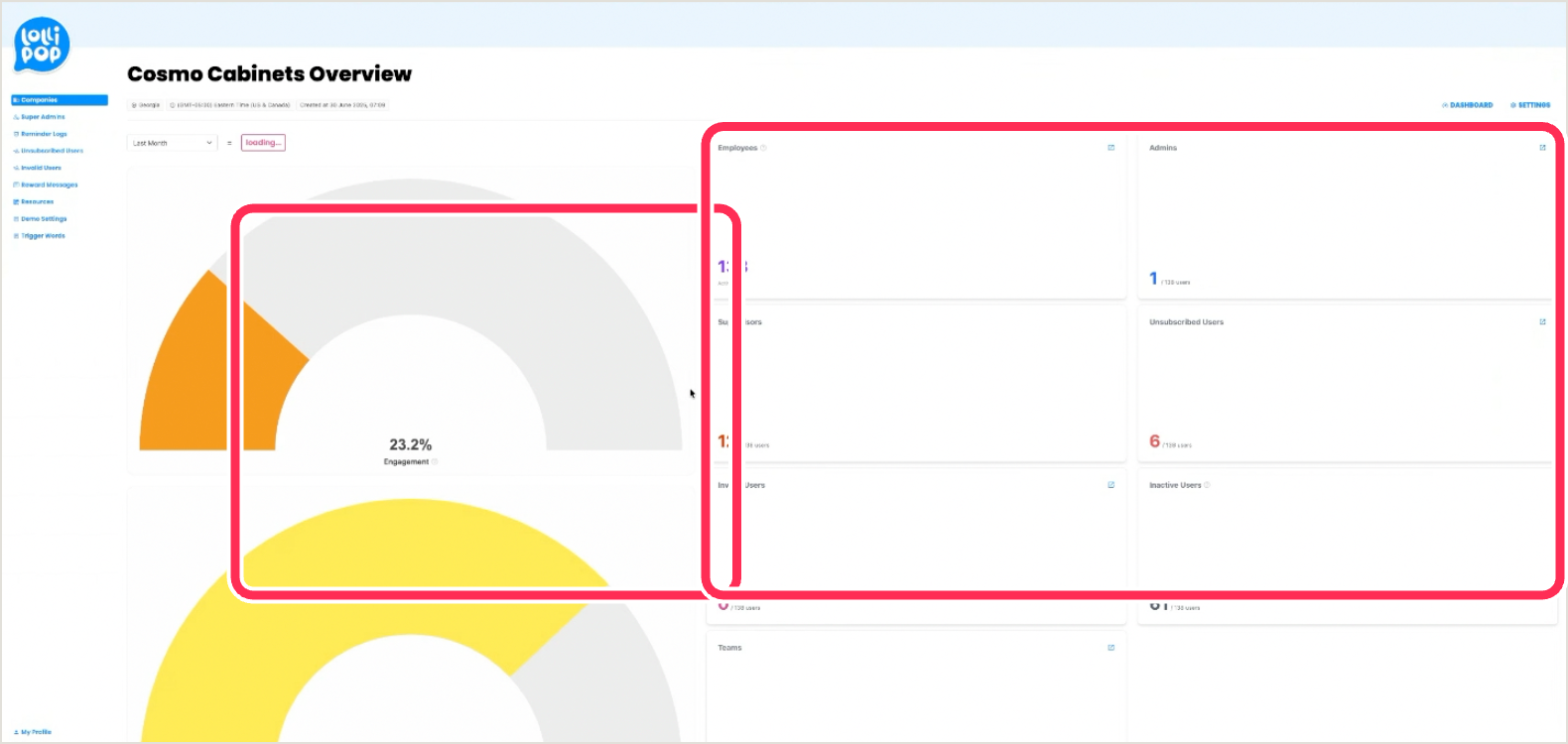
Company Overview — the at-a-glance cards

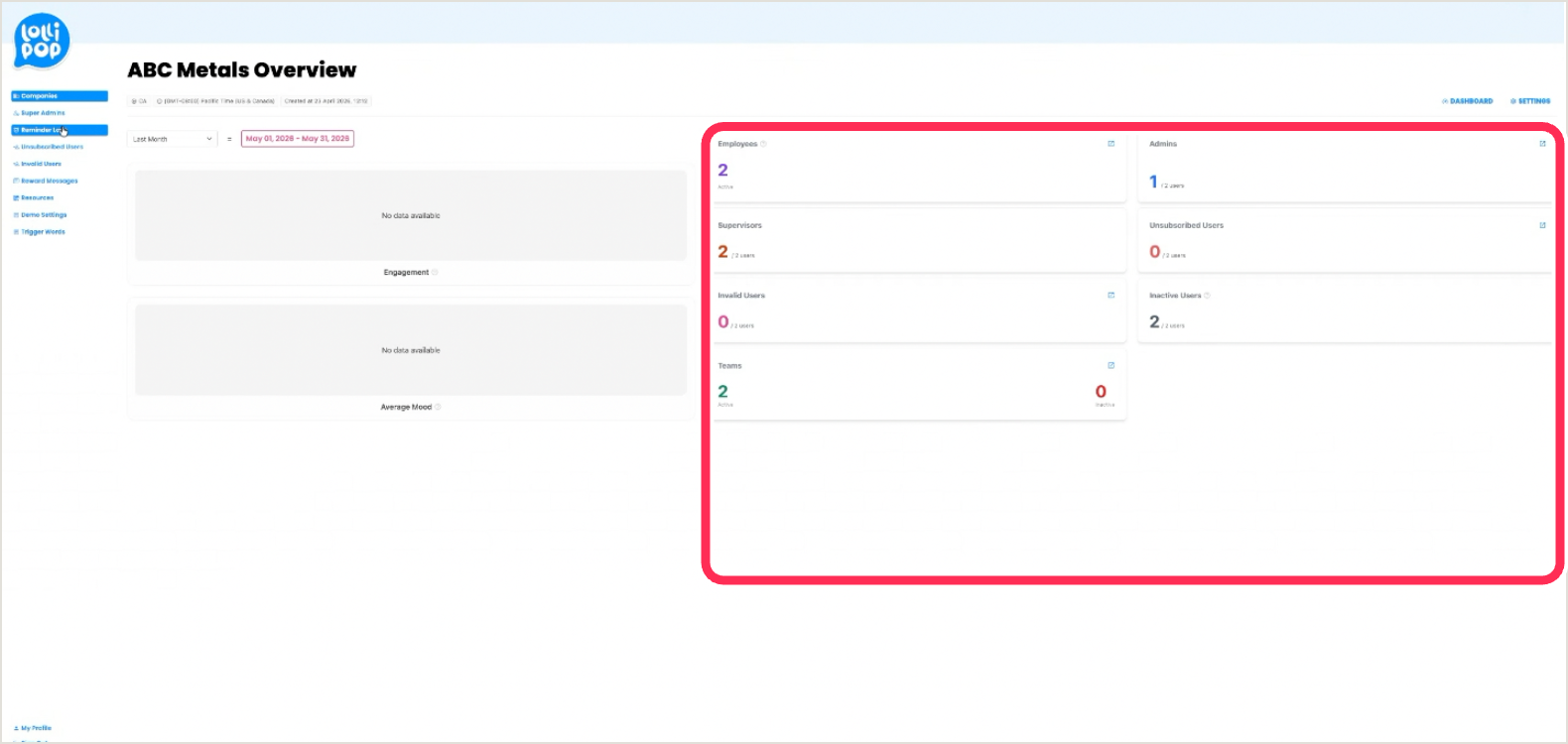
Totals for the whole account: Employees, Admins, Supervisors, Unsubscribed, Invalid, Inactive, and Teams. Right after an upload, use it to check the numbers reconcile to your roster.

Company overview with the employee / admin / supervisor / teams stat cards ringed
9

The dashboard — engagement & mood

Once you’re live, the Engagement and Average Mood gauges headline the dashboard. Set the date filter to the current month first — it’s the single most common source of confusing numbers.

Company dashboard with the engagement gauge and the stat cards ringed
Lollipop · Creating Caring Workplaces
Admin Walkthrough
Running it
10

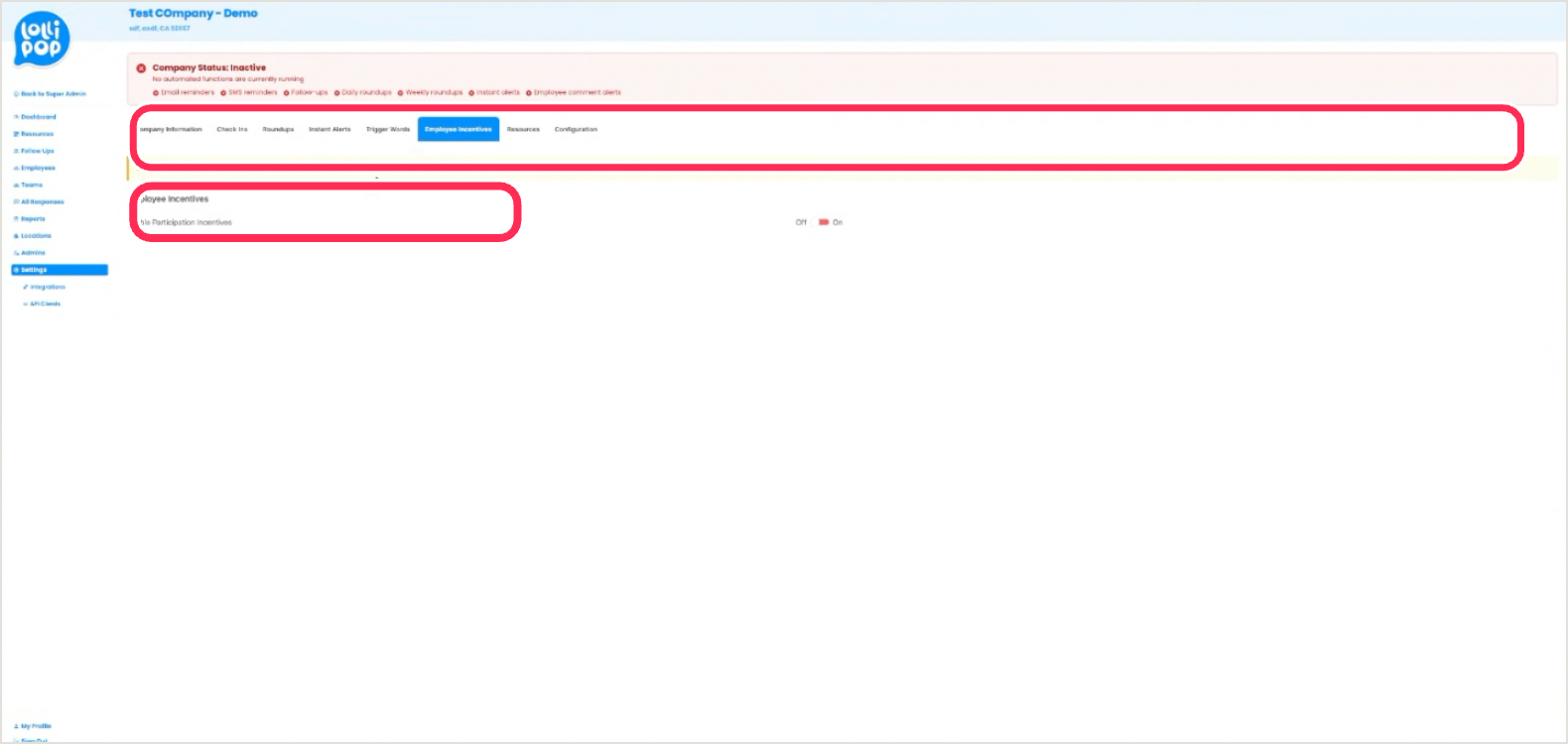
Settings → Employee Incentives

Optionally reward participation. A common approach is three $25 gift cards a month, drawn at random from everyone who checked in. Lollipop doesn’t fulfill prizes — you run and fund the incentive in-house.

Employee Incentives tab with the no-fulfillment disclaimer and the Enable toggle ringed
11

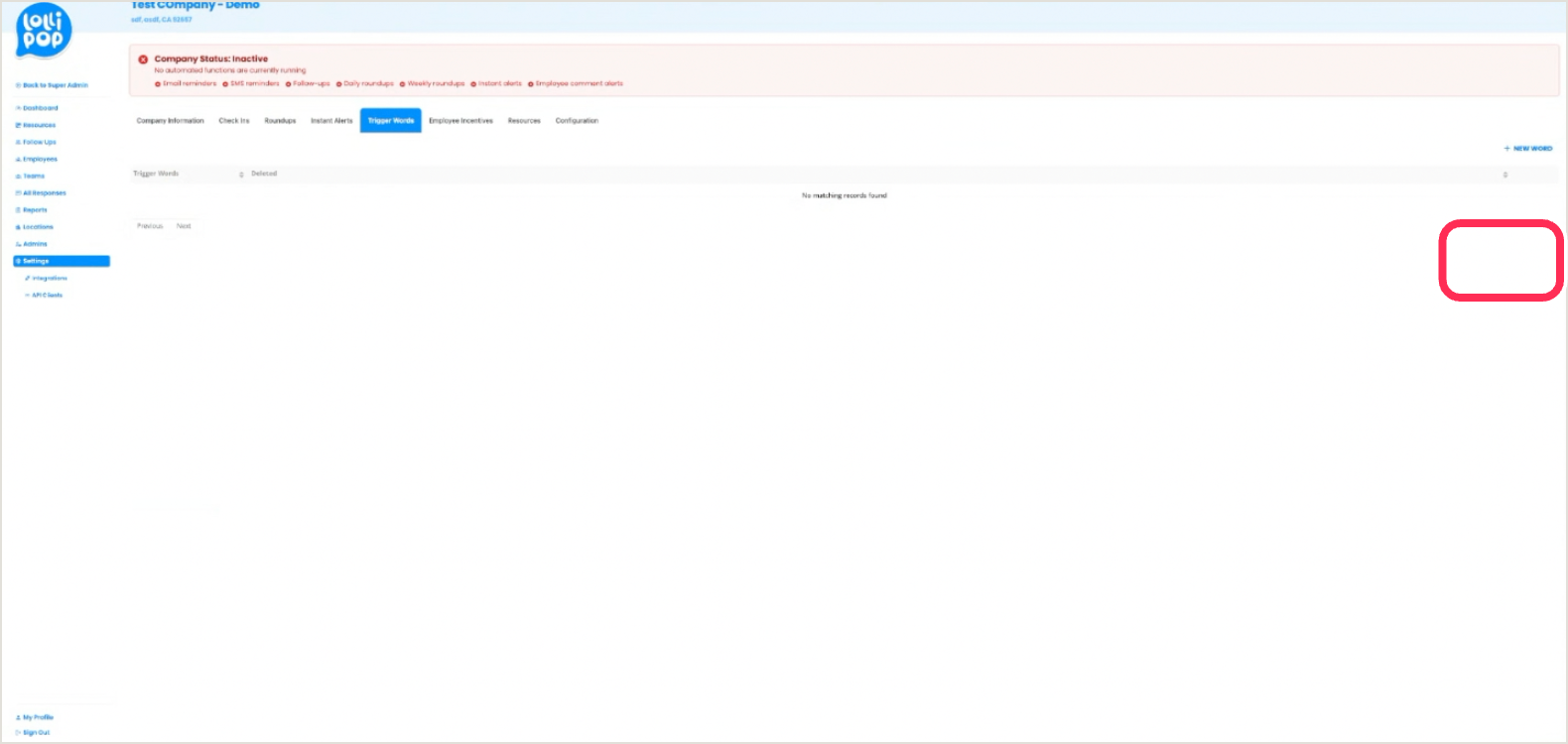
Settings → Trigger Words

Add words that escalate a check-in immediately — self-harm language, harassment, safety concerns — so the right people are alerted the moment they appear. Use + New Word to manage the list.

Trigger Words tab with the New Word button ringed

Worth adding terms specific to your industry and your own HR language, not just the obvious ones.

Lollipop · Creating Caring Workplaces
Admin Walkthrough
Running it

How engagement is calculated

Inactive and unsubscribed people are excluded from the engagement rate. It’s measured against those who can actually receive and answer a check-in, so opt-outs don’t drag your number down.

12

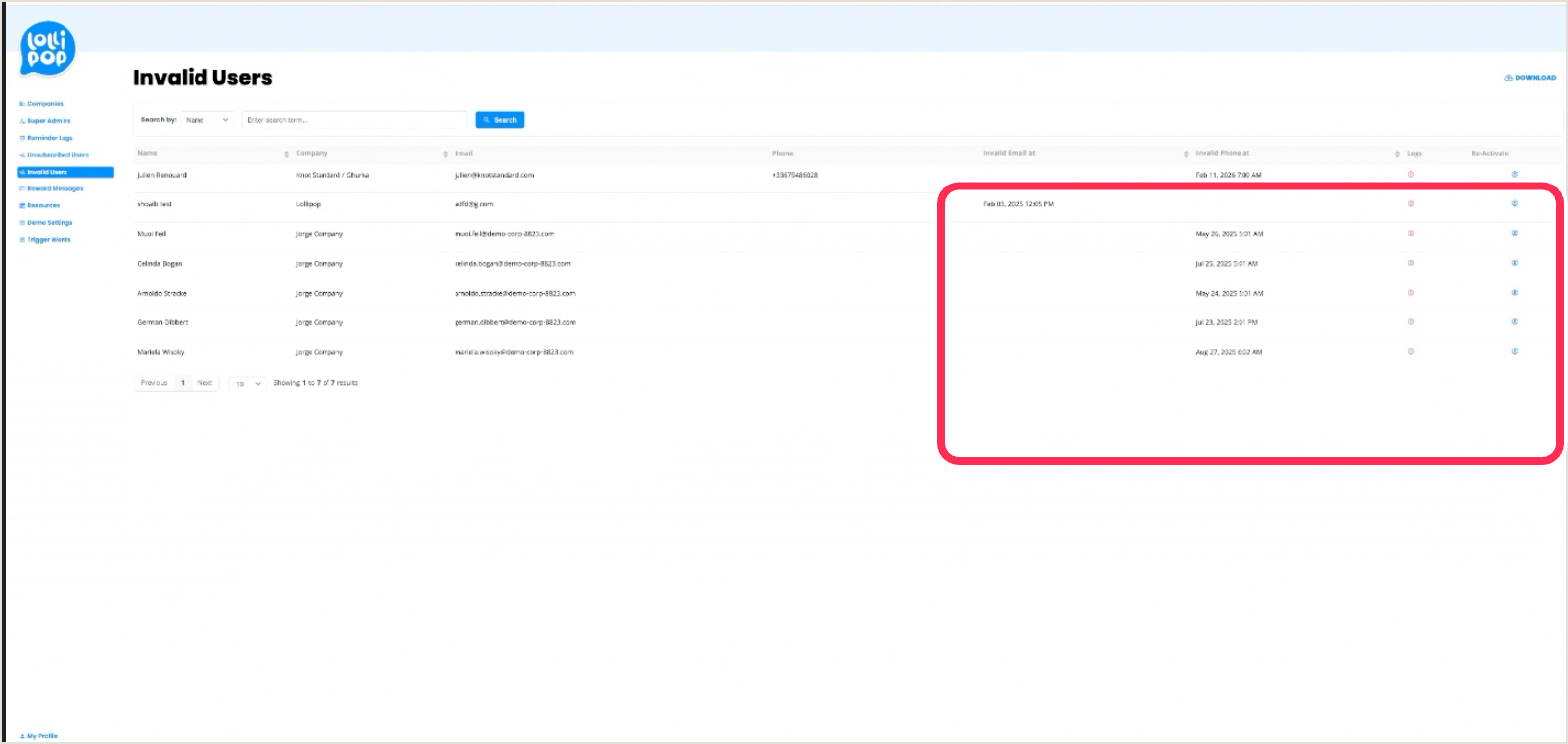
Super Admin → Invalid Users

Addresses and numbers that bounced land here with an Invalid at timestamp. Correct the contact detail and click Re-Activate. Worth checking in the first 48 hours after launch, when most bounces surface.

Invalid Users list with the Invalid-at and Re-Activate columns ringed
13

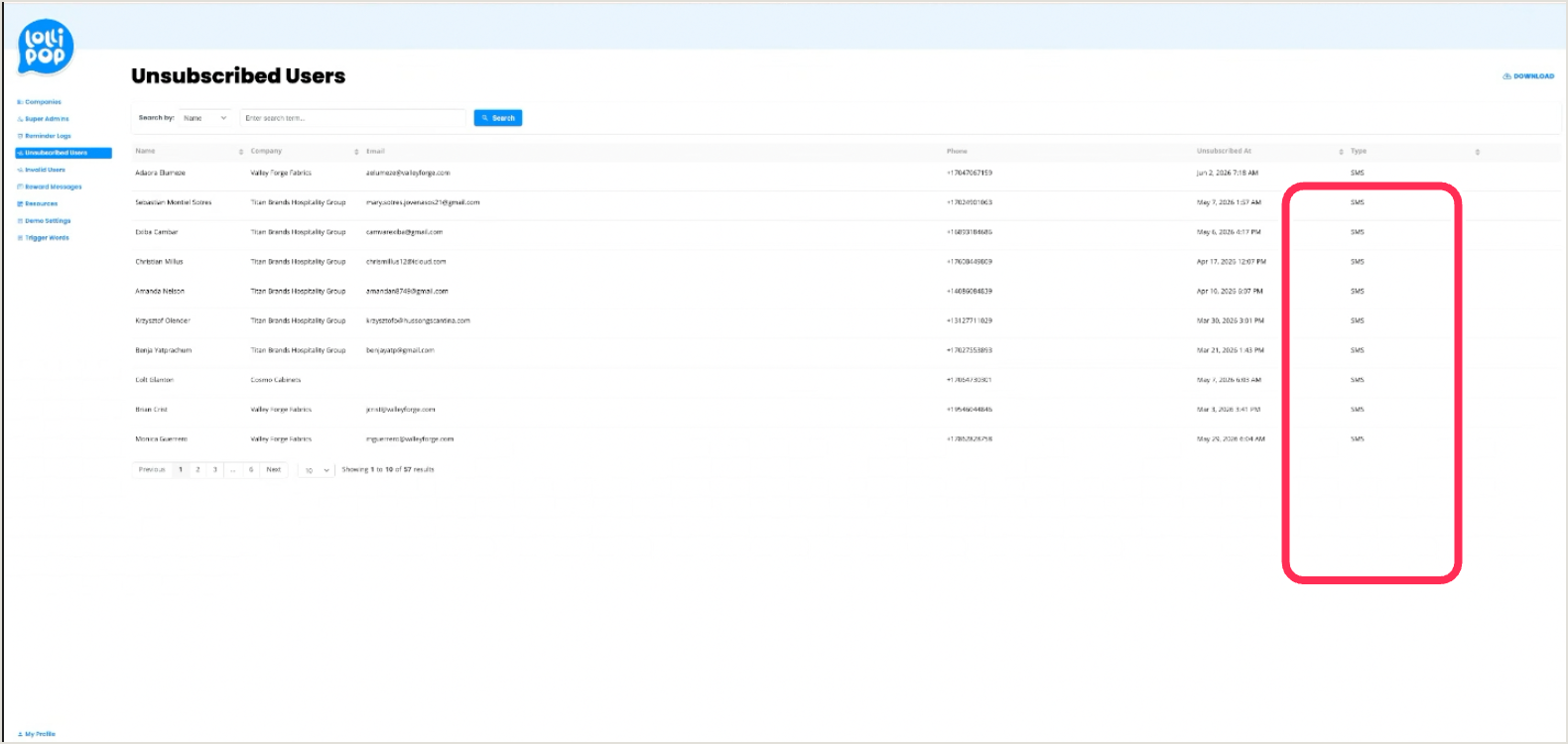
Super Admin → Unsubscribed Users

People who opted out, usually by replying STOP to an SMS. They stop receiving check-ins and leave the engagement denominator. Around 5% is normal; a sudden spike is worth a conversation.

Unsubscribed Users list with the Type (SMS) column ringed
Lollipop · Creating Caring Workplaces
Admin Walkthrough
Integrations

If you deliver by Slack

Turning on Slack delivery

Check-ins arrive as a Slack message from the Lollipop bot instead of by email or text. Your Slack admin authorizes the app once, the same as any other Slack integration.

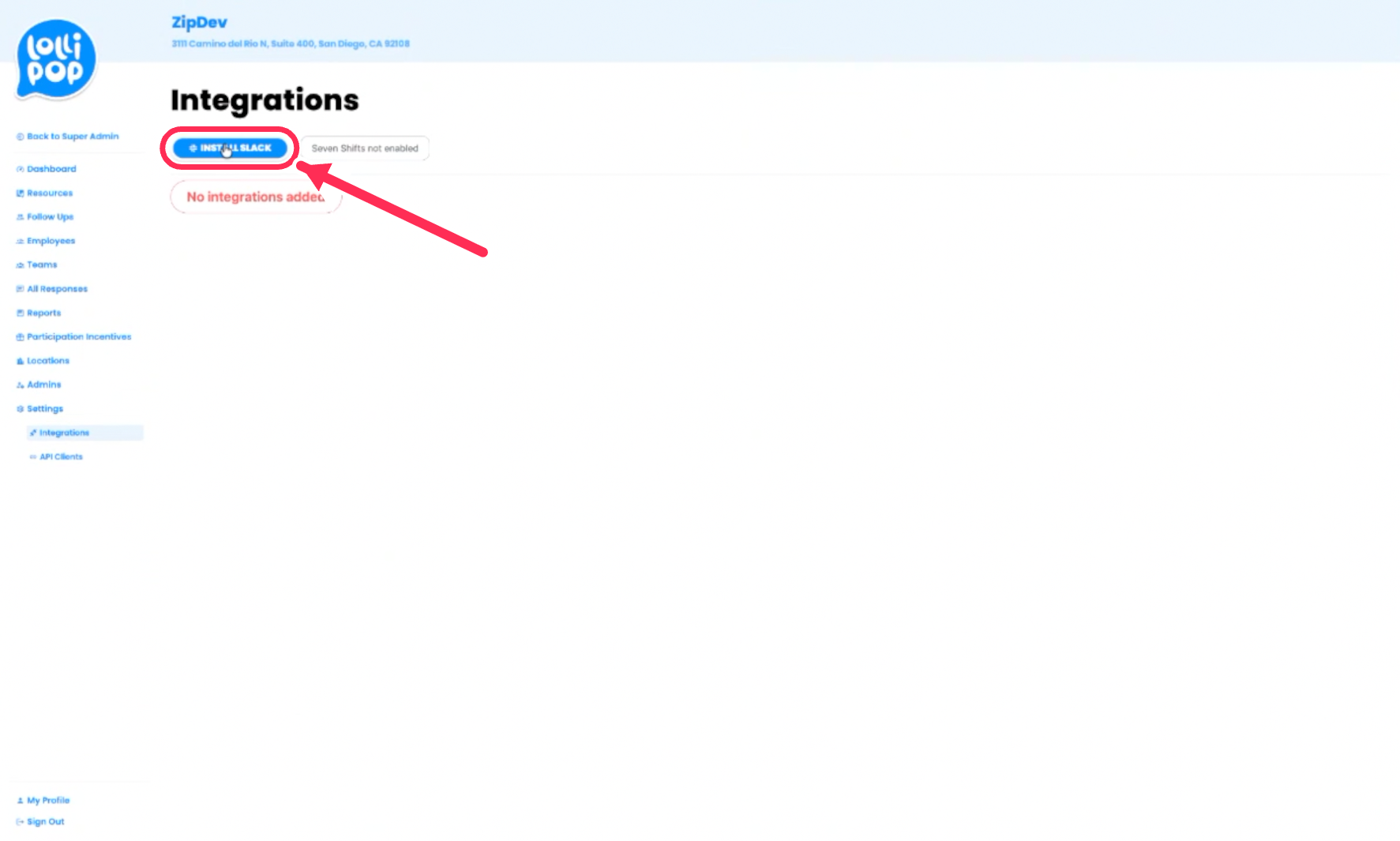
Settings → Integrations → Slack

Your Slack workspace admin installs and authorizes the Lollipop app. Once connected, check-ins route through the bot.

Lollipop admin Integrations tab with the Slack install control ringed

What Slack changes for you

No phone numbers to collect or format, which removes the largest source of import errors. Accounts set to Spanish get Spanish bot messages automatically. We still upload the roster manually rather than pulling in every Slack user, so you keep control of who’s in scope.

Slack delivery is company-wide, like the other channel settings — it isn’t set per team.

Lollipop · Creating Caring Workplaces
Admin Walkthrough
Quick reference

Keep this page

The things people ask twice

QuestionAnswer
Someone joined. Do I re-upload?No — use Employees › Add Employee for one or two. Re-upload for five or more.
Will re-uploading delete people?No. It adds and updates. Nobody is removed by an upload.
Someone left.Delete them — which deactivates rather than erases. They move to the Inactive list and leave the engagement count.
Making someone an adminEdit their existing row and set Company Admin to Yes. Never add a second record — it fails on duplicate email.
Do supervisors still check in?Yes. One row, role supervisor. They don’t need a second row as an employee.
Changing a send timeTeams › Delivery Schedules, per team. There’s no bulk edit.
Teams in other time zonesThe zone is company-wide, so offset each team’s clock time to hit its local window.
Where’s my import report?Emailed from noreply@lollipopco.co after every upload, listing failed rows and why.
Engagement looks wrongCheck the date filter first. Then remember inactive and unsubscribed people are excluded from the calculation.
Someone isn’t getting check-insLook in Super Admin › Invalid Users — a bounced address or number lands there with a timestamp.

Still stuck?

The Admin Help Center in your portal answers these and about thirty more, searchable. Anything it doesn’t cover, email your Lollipop contact — we’d rather hear from you early than have you work around something.

Lollipop · Creating Caring Workplaces